Willing to clear your chat history on Facebook, then you need to make a decision whether you want to clear a particular message or want to clear the entire history. Whatever your decision is, we are here to serve you. In this guide, you will learn how to delete all Facebook messages at once.
If you’re on Facebook for a long time and use Facebook to communicate with your loved ones then might be your Inbox is full of messages. In such scenarios, it becomes hard to manage them, so deleting them is the best solution. You can delete each message one by one but this process is time-consuming, so we’re going to describe other ways to delete all Facebook messages at once.
Contents
Ways To Delete All Facebook Messages:-
The built-in Facebook chat method allows you to clear chats one by one. But what if you have hundreds of chats, then this process will take you forever. The following ways will be proven helpful for you to delete all the Facebook messages in 2020.
1. Use Google Chrome Extension:-
Google Chrome has a built-in library of extensions to perform almost every kind of task, and this time we have come up with the Chrome extension called Delete All Messages. This extension will let you clear your entire chat history with a couple of steps. Go through these steps to clear Facebook chat history using Chrome extension:-
- Firstly, you need to add Delete All Messages extension to your chrome browser. This can be done by visiting the below-given link.
- Once You have successfully added the extension, you will notice an icon in the top right corner of Chrome. Click on it and this will lead you to a new dialog box(shown below).
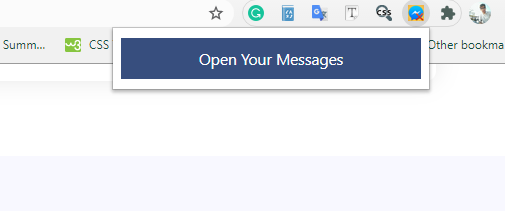
- Click on “Open Your Messages”.
- Then the following screen will appear. On this screen, you will see multiple options like delete all messages, select and delete. Choose any of them wisely.
- If you have picked select and delete choice then you need to mark the conversation you want to delete. Once you have marked all the conversations tap on Delete Selected Messages.
- However, if you wish to delete all Facebook messages at once then click on Delete All Messages.
2. Separately Delete Facebook Messages:-
This is the obvious method to clear Facebook conversations by selecting them one by one. This method is recommended by Facebook, and best suited to get rid of a few messages. The following steps will let you know how this can be done.
- Open Facebook on your preferred browser.
- Head to Facebook Messenger section.
- On the next page, you will able to see the entire list of your Facebook conversations.
- Hover your mouse on the name of the person, whom chat you want to delete.
- You will see three vertical dots next to the name of the person. The following picture will help you to acknowledge this step better.
- Now a pop-up window will appear, where you will see Delete option, click on it if you’re sure about your decision.
After that, the conversation happens between you and your friend will be removed. Rember this still your friend has the record of the chats.
3. Delete Facebook Messages On Android/iPhone:-
You need to install Facebook Messenger on your Android or iOS device to access your message history. Facebook Messenger is available on Google Play Store as well as on the App Store. Once you have downloaded the Messenger move ahead and follow the steps mentioned below to learn about how to delete Facebook messages.
Download Facebook Messenger For Android
Download Facebook Messenger For iPhone
- Launch Messenger simply by clicking on its icon.
- Locate the conversations which you want to remove.
- Hold the message until you can’t see the context menu.
- In the context menu, you will see the Delete tab, click on it.
4. Alternative Way To Clear Facebook On Android:-
You will glad to acknowledge that you can delete all Facebook messages on Android using the file manager. Before proceeding forward I suggest you make the backup, so if this step doesn’t go well then you can recover your messages. Also, you can connect your computer with the Android device to delete messages. This method only works for Android devices. Let’s see how to clear Facebook messages on Andriod:
- Launch File Manager.
- Head to the Storage.
- Locate the Android directory and click on it.
- Click on the Data folder.
- Scroll down until you can’t see the com.facebook.orca directory.
- Open the directory and delete the fb_temp.
Final Take:-
We have searched a lot and come up with these steps, that will assist you to delete all Facebook messages. It will be handy if Facebook offers the functionality to delete several messages at once. Till the time Facebook doesn’t offer this functionality, you can depend upon the steps we have examined so far. Also, you have the option to archive Facebook messages.
Archived messages will be hidden from the inbox and move to another folder. This way will help you to manage conversations without removing them. You can find the archived messages in the See All In Messanger tab.
Well, this brings us to the end of today’s article. I hope this post assists you to delete Facebook messages, if yes then share this post with your buddies.
Leave a Reply